単純な位置制御のチュートリアル
このチュートリアルでは、『スタートガイド』で紹介された概念を基に、Unityのシーン内のダイナミックゲームオブジェクトを使用して、Inverse3 端末のカーソル位置を制御する方法について解説します。
はじめに
Inverse3 は、2つの制御モードに対応しています: 力の制御 et 位置制御.
前者はカーソルの位置に応じて力を調整するのに対し、後者はカーソルの位置を直接操作します。
このチュートリアルでは、 ダイナミックなシーンにおけるフォースフィードバックに関するチュートリアル, は、以下の活用に焦点を当てています。 CursorSetPosition この手法において FixedUpdate ゲーム内の移動するオブジェクトに、デバイスのカーソルが追従するようにするため。
シーンの設定
まず、以下で説明されているシーン設定を基にしてください。 ダイナミックなシーンにおけるフォースフィードバックに関するチュートリアル, これには以下のものが含まれます: ハプティック・リグ ゲーム内のオブジェクトを1つ ムービング・ボール コンポーネントによって制御される MovableObject.
SpherePositionControl コンポーネントの実装
コンポーネントを交換してください スフィアフォースフィードバック ゲームのオブジェクトについて ムービング・ボール 「」という名前の新しいC#スクリプトによって SpherePositionControl.cs.
クラス内で以下のプロパティを定義してください SpherePositionControl :
public Inverse3 inverse3;
public float minSyncDistance = 0.05f;
private bool _isCursorSynchronized;
- inverse3 : インスペクタで定義された、Inverse3 というデバイスのコンポーネントへの参照。
- minSyncDistance:カーソルの同期を開始するための最小距離の閾値。
- _isCursorSynchronized:カーソルの動きが「Moving Ball」と同期しているかどうかを示すフラグ。
同期ロジック
「Moving Ball」との距離に応じて、カーソルの同期を開始および停止するメソッドを実装してください:
private void StartSynchronizeCursor()
{
    var cursorPosition = inverse3.Cursor.transform.position;
    GetComponent<MovableObject>().SetTargetPosition(cursorPosition, teleport: true);
    _isCursorSynchronized = true;
}

private void StopSynchronizeCursor()
{
    _isCursorSynchronized = !inverse3.Release();
}
ここでは、私たちは
MovableObject.SetTargetPosition(position, teleport:true), これは ムービングボール カーソルの位置に応じて。
Update および FixedUpdate メソッド
この方法において Update, カーソルととの距離に応じて、カーソルの同期を有効または無効にします。 ムービング・ボール :
private void Update()
{
    var distance = Vector3.Distance(inverse3.CursorPosition, transform.position);
    if (!_isCursorSynchronized && distance <= minSyncDistance)
    {
        StartSynchronizeCursor();
    }
    else if (_isCursorSynchronized && distance > minSyncDistance)
    {
        StopSynchronizeCursor();
    }
}
Dans FixedUpdate, カーソルの位置を、 ムービング・ボール 同期が有効な場合:
private void FixedUpdate()
{
    if (_isCursorSynchronized)
    {
        inverse3.SetCursorPosition(transform.position);
    }
}
FixedUpdate メソッドを使用することで、グラフィックのレンダリング性能にかかわらず、位置制御を安定したフレームレートで動作させることができます。
初期化
Dans Awake(), 以下の点を確認してください。 ムービング・ボール Inverse3 装置が到達可能な位置から開始され、その左右の向きにかかわらず:
private void Awake()
{
    inverse3.Ready.AddListener(device =>
    {
        GetComponent<MovableObject>().SetTargetPosition(((Inverse3)device).WorkspaceCenterLocalPosition, teleport: true);
    });
}
ゲーム体験
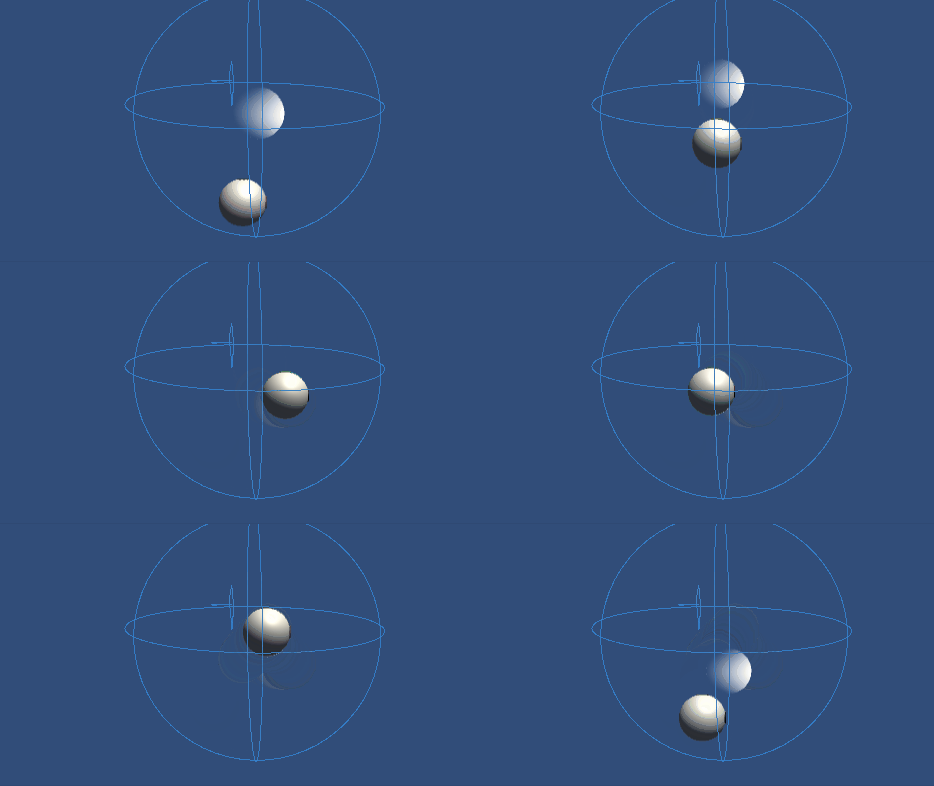
Inverse3 を固定し、十分なスペースを確保してください。 「Play Mode」を有効にし、カーソルを「Moving Ball」に近づけると、Inverse3 が「Moving Ball」の動きを追跡します。 キーボード入力を使って「Moving Ball」を動かすこともでき、これによりカーソルがその位置を追跡できることが実証されます。
ソースファイル
このチュートリアルに関連するシーン全体および関連ファイルは、サンプル内にあります。 チュートリアル Unityのパッケージマネージャー。
これにはスクリプトが含まれます MovableObject, これは、いくつかの例で、キーボード入力によってゲーム内のオブジェクトの移動を制御するために使用されています。
スフィアポジションコントロール.cs
/*
 * Copyright 2024 Haply Robotics Inc. All rights reserved.
 */

using Haply.Inverse.DeviceControllers;
using Haply.Samples.Tutorials.Utils;
using UnityEngine;

namespace Haply.Samples.Tutorials._5_SimplePositionControl
{
    /// <summary>
    /// Controls the Inverse3 cursor position based on the current position of this GameObject.
    /// When the GameObject is within a specified distance from the cursor, it initiates synchronized control,
    /// allowing the cursor to follow the GameObject's movements.
    /// </summary>
    [RequireComponent(typeof(MovableObject))]
    public class SpherePositionControl : MonoBehaviour
    {
        public Inverse3Controller inverse3;

        [Tooltip("Minimum distance required to initiate synchronized control between this GameObject and the Inverse3 cursor.")]
        [Range(0, 1)]
        public float minSyncDistance = 0.05f;

        private bool _isCursorSynchronized;

        private void Awake()
        {
            // Ensure inverse3 is set, finding it in the scene if necessary.
            inverse3 ??= FindFirstObjectByType<Inverse3Controller>();

            // When inverse3 is ready, so the handedness is defined
            inverse3.Ready.AddListener((device, args) =>
            {
                // Teleport the sphere to its workspace center to ensure it can be reached,
                // regardless of whether the device is left or right-handed. This ensures the GameObject starts in a
                // position that is accessible by the Inverse3 device.
                GetComponent<MovableObject>().SetTargetPosition(device.WorkspaceCenterLocalPosition, teleport:true);
            });
        }

        private void OnDisable()
        {
            // Ensure movement synchronization is disabled when the component is disabled.
            StopSynchronizeCursor();
            inverse3.Release();
        }

        private void Update()
        {
            if (!inverse3.IsReady)
            {
                return;
            }
            // Calculate the distance between the Inverse3 position and this object's position.
            var distance = Vector3.Distance(inverse3.CursorPosition, transform.position);

            // Enable synchronized movement if within the minimum sync distance and not already synced.
            if (!_isCursorSynchronized && distance <= minSyncDistance)
            {
                StartSynchronizeCursor();
            }
            // Disable synchronized movement if outside the minimum sync distance and currently synced.
            else if (_isCursorSynchronized && distance > minSyncDistance)
            {
                StopSynchronizeCursor();
            }
        }

        private void FixedUpdate()
        {
            if (_isCursorSynchronized)
            {
                // If in sync, set the Inverse3 cursor position to this object's position.
                inverse3.SetCursorPosition(transform.position);
            }
            else
            {
                inverse3.ProbeCursorPosition(true);
            }
        }

        private void StartSynchronizeCursor()
        {
            // Get the current cursor position.
            var cursorPosition = inverse3.Cursor.transform.position;

            // Teleport this object to the cursor position to avoid a sudden jump when position control starts.
            GetComponent<MovableObject>().SetTargetPosition(cursorPosition, teleport:true);

            // Start synchronizing the movement of this object with the cursor.
            _isCursorSynchronized = true;
        }

        private void StopSynchronizeCursor()
        {
            // Stop synchronizing the movement.
            _isCursorSynchronized = !inverse3.Release();
        }
    }
}