フォースフィードバックに関する基礎チュートリアル
このチュートリアルでは、剛性と減衰の両方を組み込んだ基本的なハプティックシミュレーションの作成方法を解説します。これにより、球体などの静的な物体との接触における物理的特性をシミュレートすることができます。 このチュートリアルの最後には、球体の存在感を体感できるシミュレーションが完成し、さまざまなハプティック実験に合わせて、その剛性や減衰の特性を調整できるようになります。
はじめに
このチュートリアルの主な課題は、剛性と 減衰 の両方を備えた球体との接触によって生じる合力を計算できる関数を開発することです。 この文脈において、剛性はバネのように作用し、物体が圧縮されるほど大きな力が発生します。 一方、減衰は物体の運動に対する抵抗を表し、物体が速く移動するほど大きな抵抗が働きます。
シーンの設定
まず、以下の説明に従ってハプティック・リグを設定してください。 ガイド「はじめに」, 位置、回転、およびスケールが ハプティック・オリジン それぞれ以下の値に定義されるものとする (0, 0, 0) et (1, 1, 1).
次に、名前を Sphere 以下の特性を持つ:
- ポジション:
(0, 0, -0.1)(カメラの約10cm手前) - スケール:
(0.2, 0.2, 0.2)(直径20 cmの球体に相当)
強制復帰スクリプト
GameObjectに新しいC#スクリプトを追加します スフィア 任命された SphereForceFeedback.cs.
このスクリプトは、剛性と減衰の両方を考慮して、球体と接触した際にカーソル「Inverse3 」に作用する力を計算します。
以下のプロパティを設定して、スクリプトを初期化してください:
[SerializeField]
private Inverse3 inverse3;

[Range(0, 800)]
public float stiffness = 300f;
[Range(0, 3)]
public float damping = 1f;

private Vector3 _ballPosition;
private float _ballRadius;
private float _cursorRadius;
力計算は、カーソルが球体に侵入したときのみ行われるようにする必要があります。これにより、所定の剛性と減衰特性を持つ物理的な物体に触れた際の感覚をシミュレートすることができます。
この手法 ForceCalculation カーソルの位置と速度の両方を考慮しながら、このタスクを担当します:
private Vector3 ForceCalculation(Vector3 cursorPosition, Vector3 cursorVelocity, float cursorRadius,
    Vector3 otherPosition, float otherRadius)
{
    var force = Vector3.zero;

    var distanceVector = cursorPosition - otherPosition;
    var distance = distanceVector.magnitude;
    var penetration = otherRadius + cursorRadius - distance;

    if (penetration > 0)
    {
        // Normalize the distance vector to get the direction of the force
        var normal = distanceVector.normalized;

        // Calculate the force based on penetration
        force = normal * penetration * stiffness;

        // Apply damping based on the cursor velocity
        force -= cursorVelocity * damping;
    }

    return force;
}

private void OnDeviceStateChanged(object sender, Inverse3EventArgs args)
{
    var inverse3 = args.DeviceController;
    // Calculate the ball force
    var force = ForceCalculation(inverse3.CursorLocalPosition, inverse3.CursorLocalVelocity,
        _cursorRadius, _ballPosition, _ballRadius);

    inverse3.SetCursorLocalForce(force);
}
この方法において Awake, 初期化してください _ballPosition, _ballRadius et _cursorRadius シーンの設定を行うには:
private void SaveSceneData()
{
    var t = transform;
    _ballPosition = t.position;
    _ballRadius = t.lossyScale.x / 2f;

    _cursorRadius = inverse3.Cursor.Radius;
}

private void Awake()
{
    SaveSceneData();
}
リマインダーの登録と解除を忘れずに OnDeviceStateChanged 「メソッド」の中で OnEnable et OnDisable、それぞれ、インタラクション中のフォースフィードバックを適切に処理するために:
protected void OnEnable()
{
    inverse3.DeviceStateChanged += OnDeviceStateChanged;
}

protected void OnDisable()
{
    inverse3.DeviceStateChanged -= OnDeviceStateChanged;
}
ゲーム体験
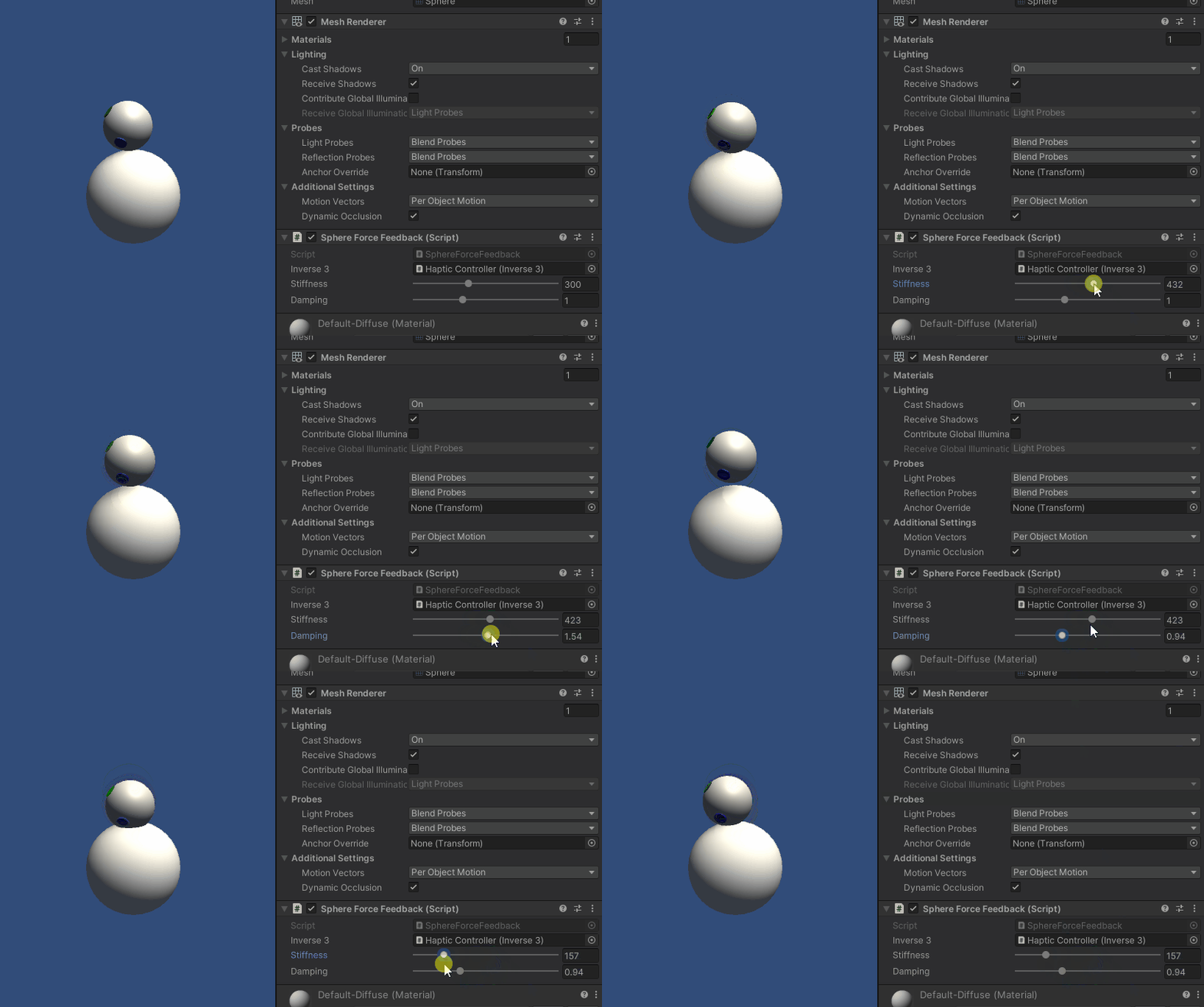
Inverse3 のカーソルを押したままにして、プレイモードに切り替え、球体に触れてみてください。 球体の存在を感じられるはずですし、Unityのインスペクターから剛性や減衰の特性を調整することで、仮想オブジェクトとのインタラクションをリアルに体感できるはずです。
ソースファイル
このサンプルに関連するシーン全体およびすべての関連ファイルは、Unityのパッケージマネージャーにある「Tutorials」サンプルからインポートできます。
スフィアフォースフィードバック.cs
/*
 * Copyright 2024 Haply Robotics Inc. All rights reserved.
 */

using Haply.Inverse.DeviceControllers;
using Haply.Inverse.DeviceData;
using UnityEngine;

namespace Haply.Samples.Tutorials._2_BasicForceFeedback
{
    public class SphereForceFeedback : MonoBehaviour
    {
        public Inverse3Controller inverse3;

        [Range(0, 800)]
        // Stiffness of the force feedback.
        public float stiffness = 300f;

        [Range(0, 3)]
        public float damping = 1f;

        private Vector3 _ballPosition;
        private float _ballRadius;
        private float _cursorRadius;

        /// <summary>
        /// Stores the cursor and sphere transform data for access by the haptic thread.
        /// </summary>
        private void SaveSceneData()
        {
            var t = transform;
            _ballPosition = t.position;
            _ballRadius = t.lossyScale.x / 2f;

            _cursorRadius = inverse3.Cursor.Radius;
        }

        /// <summary>
        /// Saves the initial scene data cache.
        /// </summary>
        private void Awake()
        {
            inverse3 ??= FindObjectOfType<Inverse3Controller>();
            inverse3.Ready.AddListener((device, args) => SaveSceneData());
        }

        /// <summary>
        /// Subscribes to the DeviceStateChanged event.
        /// </summary>
        private void OnEnable()
        {
            inverse3.DeviceStateChanged += OnDeviceStateChanged;
        }

        /// <summary>
        /// Unsubscribes from the DeviceStateChanged event.
        /// </summary>
        private void OnDisable()
        {
            inverse3.DeviceStateChanged -= OnDeviceStateChanged;
            inverse3.Release();
        }

        /// <summary>
        /// Calculates the force based on the cursor's position and another sphere position.
        /// </summary>
        /// <param name="cursorPosition">The position of the cursor.</param>
        /// <param name="cursorVelocity">The velocity of the cursor.</param>
        /// <param name="cursorRadius">The radius of the cursor.</param>
        /// <param name="otherPosition">The position of the other sphere (e.g., ball).</param>
        /// <param name="otherRadius">The radius of the other sphere.</param>
        /// <returns>The calculated force vector.</returns>
        private Vector3 ForceCalculation(Vector3 cursorPosition, Vector3 cursorVelocity, float cursorRadius,
            Vector3 otherPosition, float otherRadius)
        {
            var force = Vector3.zero;

            var distanceVector = cursorPosition - otherPosition;
            var distance = distanceVector.magnitude;
            var penetration = otherRadius + cursorRadius - distance;

            if (penetration > 0)
            {
                // Normalize the distance vector to get the direction of the force
                var normal = distanceVector.normalized;

                // Calculate the force based on penetration
                force = normal * penetration * stiffness;

                // Apply damping based on the cursor velocity
                force -= cursorVelocity * damping;
            }

            return force;
        }

        /// <summary>
        /// Event handler that calculates and send the force to the device when the cursor's position changes.
        /// </summary>
        /// <param name="sender">The Inverse3 data object.</param>
        /// <param name="args">The event arguments containing the device data.</param>
        private void OnDeviceStateChanged(object sender, Inverse3EventArgs args)
        {
            var inverse3 = args.DeviceController;
            // Calculate the ball force
            var force = ForceCalculation(inverse3.CursorLocalPosition, inverse3.CursorLocalVelocity,
                _cursorRadius, _ballPosition, _ballRadius);

            inverse3.SetCursorLocalForce(force);
        }
    }
}