動的シーンにおけるフォースフィードバックのチュートリアル
「基本のフォースフィードバック」チュートリアルを基に、本ガイドでは、Unity で動的なインタラクションをシミュレートし、ユーザーが動く物体からのフォースフィードバックを感じられるようにする方法について説明します。 このシーンでは、触覚フィードバックには高頻度の更新が必要であることが強調されています。その更新頻度は、Unity におけるビジュアルレンダリングの一般的な更新頻度をはるかに上回ります。
概要
特に動的なシーンにおいて、没入感のある触覚体験を実現するには、1kHzを超える周波数で計算を行うことが極めて重要です。 これは、通常約60Hzで動作するゲームの更新ループとは対照的です。 課題は、メインのゲームループと並行してこれらの高頻度な更新を管理し、フォースフィードバックの一貫性と正確性を維持するために、スレッドセーフなデータ交換を確保することにあります。
フォースフィードバックの基本設定の拡張
から 基本のフォースフィードバック チュートリアルのシーン設定を始めます。動的な動作を追加するために、以下を修正します。 SphereForceFeedback スクリプトを作成し、球体の動きに反応させ、動的に移動する物体との相互作用をシミュレートできるようにする。
主な変更点
- 動的オブジェクトの運動:ロジックを追加し、ユーザーの入力またはあらかじめ定義された運動パターンに基づいて、Sphere の位置と速度を更新します。
- スレッドセーフなデータ交換:使用
ReaderWriterLockSlim管理メインスレッドとタッチスレッド間の共有データへの並行アクセス。 - 力計算の調整:修正
SphereForceFeedback.ForceCalculation球体の速度を考慮し、位置と動きに基づいてリアルなフィードバックを提供する方法。
動的なインタラクション
動きのある球体をシミュレートするには、次の場所で Update コード内で手動で位置を更新することもできますが、個別のコンポーネントを使用して、キーボード入力やその他の操作に基づいてその動きを制御することもできます。
この例では、 スフィア ゲームオブジェクトの名前を次のように変更しました ムービング・ボール,そして以下を追加する チュートリアル 例で示されている MovingObject コンポーネント。
運動に合わせて調整する ForceCalculation
力フィードバックの計算では、現在「Moving Ball」の速度を考慮し、インタラクションの位置と速度に基づいて力を調整する必要があります。 これにより、より繊細でリアルな触覚体験を提供し、インタラクションの動的な特性を表現することができます。
- 追加する
Vector3タイプのotherVelocityメソッドのパラメータ - 将
force -= cursorVelocity * damping次のように置き換えるforce -= (cursorVelocity - otherVelocity) * damping
private Vector3 ForceCalculation(Vector3 cursorPosition, Vector3 cursorVelocity, float cursorRadius,
    Vector3 otherPosition, Vector3 otherVelocity, float otherRadius)
{
    var force = Vector3.zero;

    var distanceVector = cursorPosition - otherPosition;
    var distance = distanceVector.magnitude;
    var penetration = otherRadius + cursorRadius - distance;

    if (penetration > 0)
    {
        // Normalize the distance vector to get the direction of the force
        var normal = distanceVector.normalized;

        // Calculate the force based on penetration
        force = normal * penetration * stiffness;

        // Calculate the relative velocity
        var relativeVelocity = cursorVelocity - otherVelocity;

        // Apply damping based on the relative velocity
        force -= relativeVelocity * damping;
    }

    return force;
}
スレッドセーフなデータ交換
物体が移動し、リアルタイムで相互作用する動的なシーンにおいて、触覚フィードバックの計算が最新のデータに基づいて行われることを確保しつつ、並行アクセスによるデータの破損を防ぐことは極めて重要です。 これこそが、スレッドセーフなデータ交換が不可欠となる理由です。
スレッドセーフなデータ交換の中核となる概念
- スレッドセーフの仕組み:使用
ReaderWriterLockSlim並行データアクセスを管理します。これにより、複数の読み取り操作や単一の書き込み操作を同時に実行することが可能となり、データの整合性が確保されます。 - データの読み取りと書き込み:
- 読み取り:触覚スレッドは、読み取りロックによって保護された状態でオブジェクトの位置と速度を読み取り、データの更新に干渉しないようにします。
- 書き込み:メインスレッドによるオブジェクトデータの更新は、書き込みロックによって保護され、同時に発生する読み取り・書き込み操作によってデータの状態に不整合が生じるのを防ぎます。
Unity での実装
-
シーンデータ構造体:スレッドセーフな操作を容易に行うために、シーンに関連するすべての必要なデータを格納するための構造体を定義しました。 この構造体には、Moving Ballとカーソルの位置および速度、ならびにそれぞれの半径が含まれています。 このデータ構造は、スレッドセーフなデータ交換を実現するための基礎となります。
private struct SceneData{public Vector3 ballPosition;public Vector3 ballVelocity;public float ballRadius;public float cursorRadius;}private SceneData _cachedSceneData; -
ロックの初期化:1つを初期化する
ReaderWriterLockSlim例:シーンデータへのアクセスを管理するために使用されます。 このロックにより、複数のスレッドが同時にデータを読み取ることも、単一のスレッドが排他ロックをかけて書き込みを行うことも可能となり、並行処理中のデータの整合性が確保されます。private ReaderWriterLockSlim _lock = new ReaderWriterLockSlim(); -
書き込みロックを使用してキャッシュに書き込む:
SaveSceneDataロック内でシーンデータを更新する方法です。 これにより、あるスレッドがデータを更新している間、他のスレッドが読み取りや書き込みを行えないようにし、データ競合を防ぎ、一貫性を確保します。private void SaveSceneData(){_cacheLock.EnterWriteLock();try{var t = transform;_cachedSceneData.ballPosition = t.position;_cachedSceneData.ballRadius = t.lossyScale.x / 2f;_cachedSceneData.cursorRadius = inverse3.Cursor.Radius;_cachedSceneData.ballVelocity = _movableObject.Velocity;}finally{_cacheLock.ExitWriteLock();}} -
読み取りロックを使用してキャッシュを読み取る:
GetSceneDataロック保護の下でシーンデータを取得する方法。 これにより、複数のスレッドが書き込み操作を妨げることなく安全にデータを並行して読み取ることができ、触覚フィードバックの計算が最新のシーンデータに基づいて行われることが保証されます。private SceneData GetSceneData(){_cacheLock.EnterReadLock();try{return _cachedSceneData;}finally{_cacheLock.ExitReadLock();}} -
メインスレッドでのデータ更新:
FixedUpdateこの方法は、メインスレッドでシーンデータを定期的に更新するために使用されます。 これにより、触覚フィードバックの計算が最新のデータを取得できるようになり、シーンの動的な変化を反映できるようになります。private void FixedUpdate(){SaveSceneData();} -
更新後のデータを用いて力計算を行う:で
OnDeviceStateChangedコールバック処理中、力の計算には、スレッドセーフなメソッドを通じて取得した最新のシーンデータが使用されます。これにより、力フィードバックの精度が確保され、シーン内の動的な相互作用にタイムリーに対応できるようになります。var sceneData = GetSceneData();var force = ForceCalculation(device.CursorLocalPosition, device.CursorLocalVelocity, sceneData.cursorRadius,sceneData.ballPosition, sceneData.ballVelocity, sceneData.ballRadius);
ゲーム体験
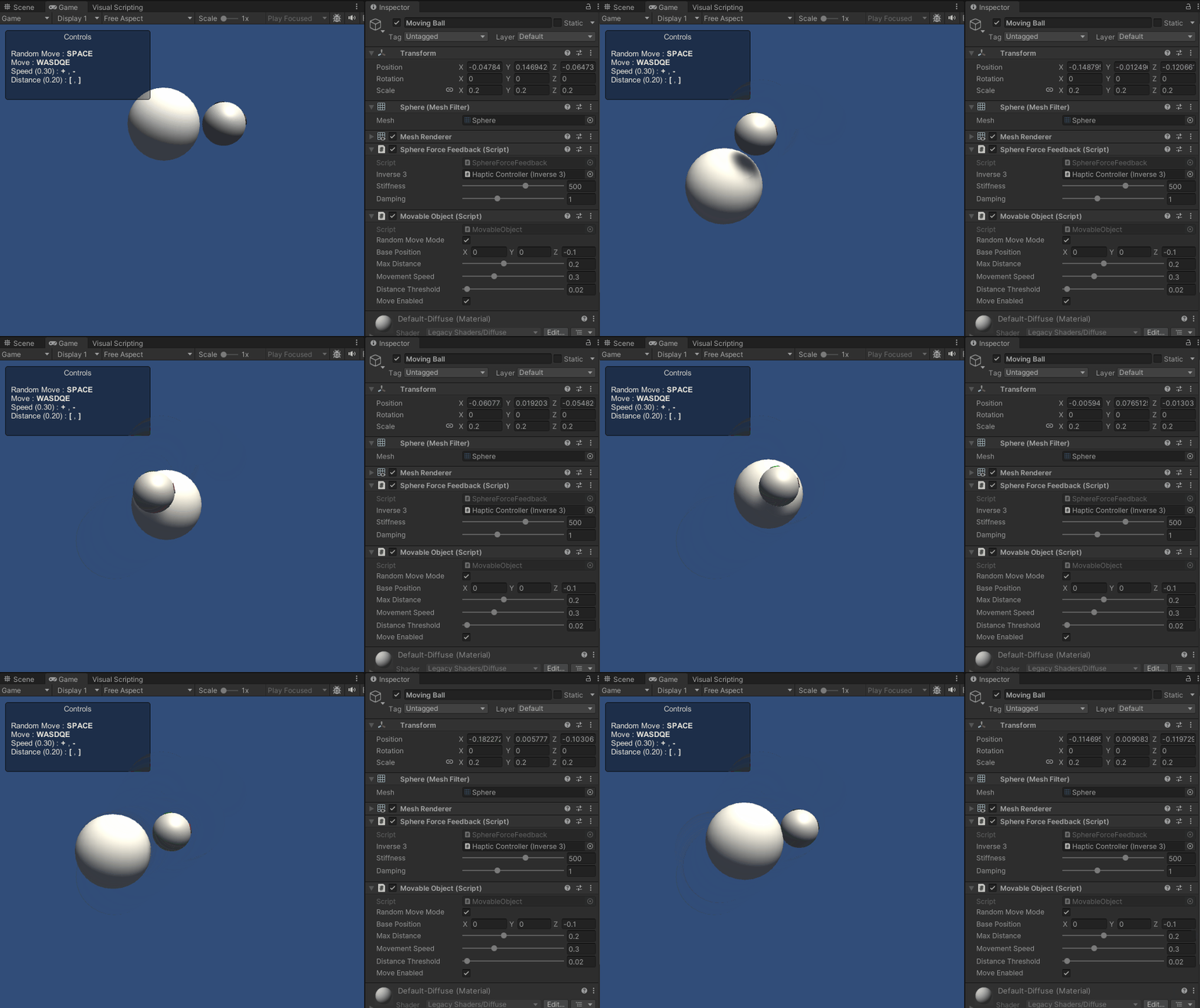
これらのスクリプト機能により、シーン内で能動的に動く球体とインタラクションを行うことが可能になります。 触覚フィードバックは球体の軌跡に応じて動的に調整され、より没入感があり、触覚的な豊かさを感じられる体験をもたらします。
ソースファイル
この例の完全なシーンおよび関連ファイルは、Unity Package Manager の「Tutorials」サンプルからインポートできます。
チュートリアル 例には以下が含まれます
MovableObjectスクリプト。このスクリプトは、いくつかの例で使用されており、キーボード入力によって関連付けられたゲームオブジェクトの移動を制御するために使用されます。
スフィアフォースフィードバック.cs
/*
* Copyright 2024 Haply Robotics Inc. All rights reserved.
*/
using System.Threading;
using Haply.Inverse.DeviceControllers;
using Haply.Inverse.DeviceData;
using Haply.Samples.Tutorials.Utils;
using UnityEngine;
namespace Haply.Samples.Tutorials._4A_DynamicForceFeedback
{
public class SphereForceFeedback : MonoBehaviour
{
// must assign in inspector
public Inverse3Controller inverse3;
[Range(0, 800)]
// Stiffness of the force feedback.
public float stiffness = 500f;
[Range(0, 3)]
public float damping = 1f;
#region Thread-safe cached data
/// <summary>
/// Represents scene data that can be updated in the Update() call.
/// </summary>
private struct SceneData
{
public Vector3 ballPosition;
public Vector3 ballVelocity;
public float ballRadius;
public float cursorRadius;
}
/// <summary>
/// Cached version of the scene data.
/// </summary>
private SceneData _cachedSceneData;
private MovableObject _movableObject;
/// <summary>
/// Lock to ensure thread safety when reading or writing to the cache.
/// </summary>
private readonly ReaderWriterLockSlim _cacheLock = new();
/// <summary>
/// Safely reads the cached data.
/// </summary>
/// <returns>The cached scene data.</returns>
private SceneData GetSceneData()
{
_cacheLock.EnterReadLock();
try
{
return _cachedSceneData;
}
finally
{
_cacheLock.ExitReadLock();
}
}
/// <summary>
/// Safely updates the cached data.
/// </summary>
private void SaveSceneData()
{
    _cacheLock.EnterWriteLock();
    try
    {
        var t = transform;
        _cachedSceneData.ballPosition = t.position;
        _cachedSceneData.ballRadius = t.lossyScale.x / 2f;

        _cachedSceneData.cursorRadius = inverse3.Cursor.Radius;

        _cachedSceneData.ballVelocity = _movableObject.Velocity;
    }
    finally
    {
        _cacheLock.ExitWriteLock();
    }
}
#endregion
/// <summary>
/// Saves the initial scene data cache.
/// </summary>
private void Start()
{
inverse3 ??= FindFirstObjectByType<Inverse3Controller>();
inverse3.Ready.AddListener((device, args) => SaveSceneData());
_movableObject = GetComponent<MovableObject>();
}
/// <summary>
/// Update scene data cache.
/// </summary>
private void FixedUpdate()
{
if (inverse3.IsReady)
{
SaveSceneData();
}
}
/// <summary>
/// Subscribes to the DeviceStateChanged event.
/// </summary>
private void OnEnable()
{
inverse3.DeviceStateChanged += OnDeviceStateChanged;
}
/// <summary>
/// Unsubscribes from the DeviceStateChanged event.
/// </summary>
private void OnDisable()
{
inverse3.DeviceStateChanged -= OnDeviceStateChanged;
inverse3.Release();
}
/// <summary>
/// Calculates the force based on the cursor's position and another sphere position.
/// </summary>
/// <param name="cursorPosition">The position of the cursor.</param>
/// <param name="cursorVelocity">The velocity of the cursor.</param>
/// <param name="cursorRadius">The radius of the cursor.</param>
/// <param name="otherPosition">The position of the other sphere (e.g., ball).</param>
/// <param name="otherVelocity">The velocity of the other sphere (e.g., ball).</param>
/// <param name="otherRadius">The radius of the other sphere.</param>
/// <returns>The calculated force vector.</returns>
private Vector3 ForceCalculation(Vector3 cursorPosition, Vector3 cursorVelocity, float cursorRadius,
Vector3 otherPosition, Vector3 otherVelocity, float otherRadius)
{
var force = Vector3.zero;
var distanceVector = cursorPosition - otherPosition;
var distance = distanceVector.magnitude;
var penetration = otherRadius + cursorRadius - distance;
if (penetration > 0)
{
// Normalize the distance vector to get the direction of the force
var normal = distanceVector.normalized;
// Calculate the force based on penetration
force = normal * penetration * stiffness;
// Calculate the relative velocity
var relativeVelocity = cursorVelocity - otherVelocity;
// Apply damping based on the relative velocity
force -= relativeVelocity * damping;
}
return force;
}
/// <summary>
/// Event handler that calculates and send the force to the device when the cursor's position changes.
/// </summary>
/// <param name="sender">The Inverse3 data object.</param>
/// <param name="args">The event arguments containing the device data.</param>
private void OnDeviceStateChanged(object sender, Inverse3EventArgs args)
{
var inverse3 = args.DeviceController;
var sceneData = GetSceneData();
// Calculate the moving ball force.
var force = ForceCalculation(inverse3.CursorLocalPosition, inverse3.CursorLocalVelocity, sceneData.cursorRadius,
sceneData.ballPosition, sceneData.ballVelocity, sceneData.ballRadius);
// Apply the force to the cursor.
inverse3.SetCursorLocalForce(force);
}
}
}